Electronics / Video Capture
User Manual for Valore 2-Way Connectivity Wireless Keyboard with Touchpad AC132
Quick guide for the Valore AC132 wireless keyboard with touchpad. Learn how to connect via 2.4GHz or Bluetooth, use multimedia keys, and master touchpad gestures.
Quick answers from the manual
Quick answer
- To connect via 2.4GHz, plug the USB dongle into your PC and turn on the keyboard. For Bluetooth, press FN + (2, 3, or 4) for 5 seconds to enter pairing mode, then select 'Valore AC132' on your device. p. 2
Key actions
- Switch connection modes p. 2
- Wake from sleep mode p. 2
First start
- Install two AAA batteries and turn on the power switch. p. 2
Problems and fixes
Connection fails
Remove the pairing record from your device and repair as described.
p. 2Maintenance and reset
- Replace batteries when the blue Cap light flashes quickly. p. 2
Technical specifications
| Parameter | Value | Meaning | Pages |
|---|---|---|---|
| Transmission | Up to 10m | Wireless range | p. 1 |
| Battery | AAA x 2 | Power source | p. 1 |
| Dimensions | 367 x 121 x 19mm | Physical size | p. 1 |
Where to find it in the PDF
- Product Overview and Specs p. 1
- Connection and Usage p. 2
- Multimedia and Gestures p. 3, 4
- Support and Safety p. 5
Table of contents
Manual images
Click an image to enlargeQuick guide from the manual
The Valore AC132 is a wireless keyboard featuring 2.4GHz and Bluetooth connectivity, an integrated touchpad, and multimedia hotkeys. It requires 2x AAA batteries (not included) and is compatible with Windows XP and above, Android, and Mac OS X 10 and above. The touchpad functionality is limited to Windows XP and above.
Getting started
Insert two AAA batteries into the battery compartment and turn on the power switch located on the upper side of the keyboard.
Connection modes
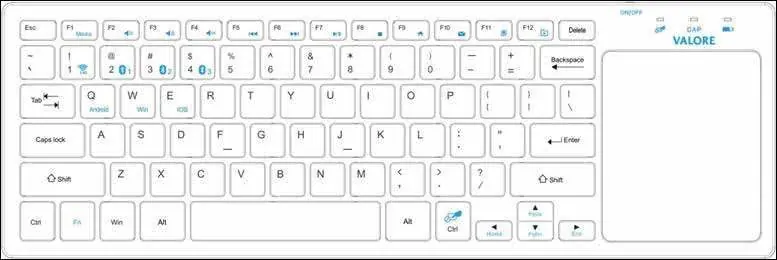
2.4GHz connection
- Plug the USB dongle into your PC's USB port.
- The red power light will turn on, and the blue Cap light will flash quickly twice before turning off, indicating a successful link.
Bluetooth connection
- Press and hold any of the three groups: FN + (2, 3, or 4) for 5 seconds. The blue Cap light will flash slowly, indicating the keyboard is in pairing mode.
- Open the Bluetooth settings menu on your tablet, laptop, or smartphone.
- Search for and select "Valore AC132" to connect.
- Once connected, the blue Cap light will flash twice and turn off.
Mode conversion
You can switch between connection modes by pressing FN + (1, 2, 3, or 4) for 1 second. The red power light will turn on, and the blue Cap light will flash twice to confirm the switch.
Multimedia keys
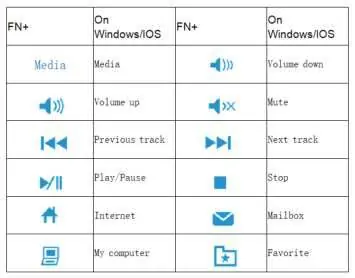
Use the FN key in combination with the top row keys to access media functions such as volume control, track navigation, and system shortcuts like "My computer" or "Mailbox".
Touch 5.0 gesture function
The integrated touchpad supports various gestures for Windows 10:
- Single finger tapping: Left mouse click.
- Single finger slide: Move cursor.
- Single finger drag: Select and drag.
- Two finger tap: Right mouse click.
- Vertical/Horizontal move (two fingers): Scrolling.
- Two fingers outward/inward: Magnification/Minification.
- Three finger tap: Open Cortana.
- Slide three fingers forward/backward: Open task explorer/Display desktop.
- Four finger tap: Open Action Center.
Indicators and power saving
- Low power: The blue Cap light flashes quickly when the battery is low.
- Sleep mode: The keyboard enters sleep mode after 15 minutes of inactivity. Press any key to wake it up.
Safety and maintenance
- Do not store or use the product in high-temperature environments or near fire.
- Keep the product dry; do not expose it to moisture or submerge in liquid.
- Do not disassemble or modify the product.
- Supervise children when they use the keyboard.
- If the product is damaged (dents, punctures, abnormal smell, or discoloration), stop using it immediately.
Practical help
Common problems
Keyboard not connecting
Remove the pairing record from your device and perform the pairing process again.
Low battery indication
The blue Cap light flashes quickly; replace the AAA batteries.
Touchpad not functioning
Ensure you are using Windows XP or above, as touchpad features are limited to these systems.
Before use
- Insert 2x AAA batteries (not included)
- Turn on the power switch on the upper side
- Choose connection mode (2.4GHz or Bluetooth)
- Ensure device compatibility (Windows XP+, Android, Mac OS X 10+)
Specs in practice
- Transmission
- Wireless range of up to 10 meters.
- Connectivity
- Supports both 2.4GHz wireless (via USB dongle) and Bluetooth.
- Key lifespan
- Rated for 5 million keystrokes.
Images and diagrams
- Keyboard layout showing key placement and touchpad area.
- Multimedia key functions table for Windows/iOS.
- Touchpad gesture table for Windows 10.
Model compatibility
- Windows XP and above
- Mac OS X 10 and above
- Touchpad only available for Win XP and above

Manual page author
Emily Carter
User documentation editor
Prepares concise manual descriptions and highlights the most useful setup, operation, and maintenance information for readers.