Power / Uninterruptible Power Supplies
User Manual for Xmart SUPRA 505/705/905 Interactive UPS
Quick guide for the Xmart SUPRA 505, 705, and 905 Interactive UPS. Includes installation steps, battery maintenance, troubleshooting, and technical specifications.
Table of contents
Manual images
Click an image to enlargeQuick guide from the manual
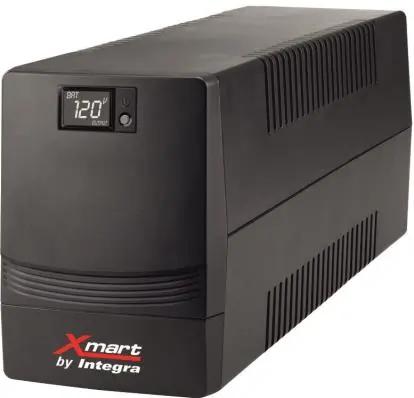
This manual provides essential instructions for the Xmart SUPRA 505, 705, and 905 Interactive UPS. The device is designed to provide electrical protection against surges and spikes, and backup power via internal batteries. Important: This product operates with dangerous voltages. Installation, operation, and maintenance must be performed by qualified technicians only. Do not open the unit or attempt repairs yourself.
UPS Description
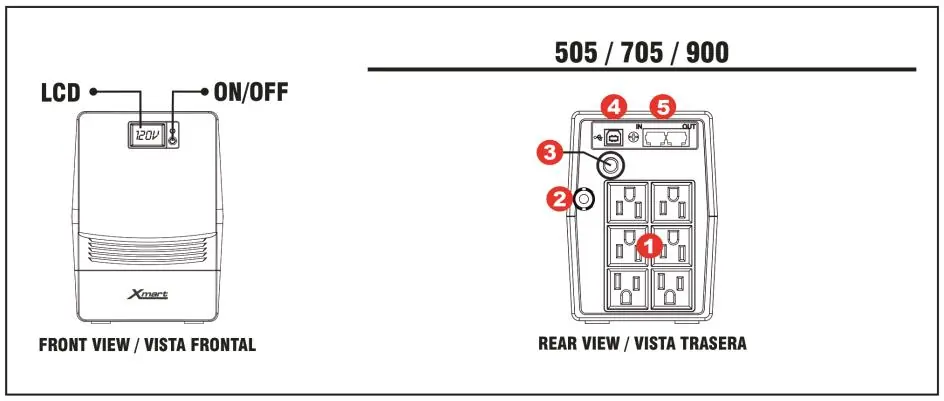
The UPS features an LCD screen on the front panel for status monitoring and an ON/OFF button. The rear panel contains output sockets, AC input, an AC input breaker, a USB port for PC communication, and RJ45/RJ11 surge-protected sockets for network/phone lines.
UPS Installation
Follow these guidelines for proper installation:
- Install indoors in a controlled environment free of excessive dust, corrosive air, or conductive dust.
- Keep at least 20cm away from PC screens to avoid interference.
- Do not install in closed boxes or cabinets; the unit requires fresh air for cooling.
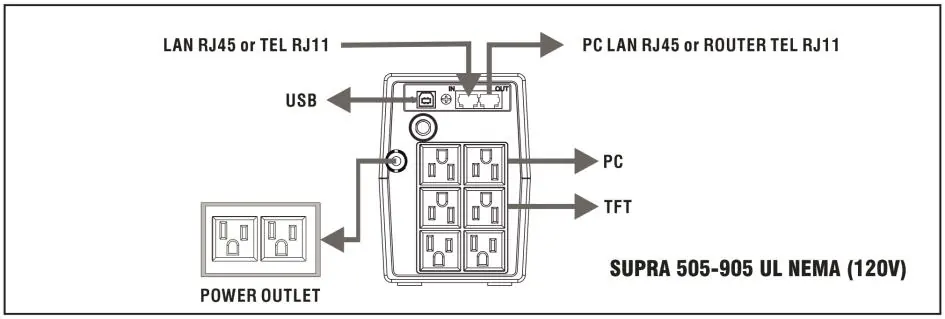
- Connect TEL or LAN lines to the IN port and connect the OUT port to your router or PC.
- Ensure the total load in Watts connected to the UPS does not exceed its maximum capacity.
- Do not connect laser printers or copiers, as these are high-load devices that may overload the UPS.
Battery Maintenance
Batteries have a useful life of 3 to 5 years under optimal conditions (temperature under 25°C). High temperatures and frequent deep discharges will reduce battery life. To maintain battery health:
- Fully discharge the UPS once every 3 months to extend life expectancy.
- If storing the UPS for long periods, recharge the batteries according to the storage temperature: every 4 months if stored between -25°C and +30°C, or every 2 months if stored between +30°C and +45°C.
LCD and Troubleshooting
The LCD displays utility and UPS data. If an alarm sounds, check the code on the LCD:
- F01: Output Shortcircuit. Remove faulty equipment.
- F02: Overload. Remove non-critical equipment.
- F03: Overcharge. Call technical service.
- F04: Battery Low. Recharge for 6 hours; if the issue persists, call technical service.
- F05: Output High under battery mode. Call technical service.
- F06: High Temperature. Call technical service.
Control Software
Most models include a USB port for PC communication. You can download the control software from www.xmart-ups.com to monitor the UPS, configure settings, and enable automatic PC shutdown during AC failures.
Official resources from the manual
Practical help
Common problems
UPS does not turn ON (LED OFF)
Ensure the ON button was pressed for 2-3 seconds. If it still fails, the battery may be low (keep plugged in to recharge) or there may be a battery failure (contact service).
UPS goes to battery mode even when main source is OK
Check if the input cable is properly connected to the main source. Check if the input breaker is activated (open) and reset it if necessary.
Input breaker trips frequently
The equipment connected to the UPS outlets is overloading the unit. Unplug equipment until the overload condition is resolved.
Continuous BEEP alarm
The UPS is overloaded. Unplug equipment until the overload condition is resolved.
UPS powers off when AC fails (runtime = 0s)
The battery level is too low due to recent discharge (keep plugged in to recharge) or the battery has failed (contact service).
Before use
- Ensure the installation environment is free of dust and corrosive air.
- Keep the UPS at least 20cm away from PC screens.
- Verify that the AC source is compatible with the UPS electrical specifications.
- Check that the total load in Watts does not exceed the UPS capacity.
- Do not connect laser printers or copiers to the UPS.
- Ensure the socket-outlet is near the equipment and easily accessible.
Specs in practice
- Transfer Time
- 2-6 ms typical, the time taken to switch to battery power during an outage.
- Operating Altitude
- 0-2000m above sea level.
Images and diagrams
- Front View: Shows the LCD screen and the ON/OFF button.
- Rear View: Identifies output sockets, AC input, AC input breaker, USB port, and RJ45/RJ11 surge protection ports.
- Connection Diagram: Illustrates connecting the PC and TFT monitor to the output sockets and the network/phone lines to the surge protection ports.
Model compatibility
- Compatible with Windows, Mac OSX, Linux, and Unix via USB software.
- Compatible with generators.
- Not compatible with laser printers or copiers due to high load.

Manual page author
Emily Carter
User documentation editor
Prepares concise manual descriptions and highlights the most useful setup, operation, and maintenance information for readers.