Electronics / Monitors
Firmware Update Guide for ZOOM MS-50G+ Guitar Effects Pedal
Step-by-step instructions for updating the firmware on your ZOOM MS-50G+ guitar effects pedal, including preparation, file extraction, and the update process for Windows and macOS.
Table of contents
Manual images
Jump to the sectionQuick guide from the manual
This document provides instructions for updating the firmware of the ZOOM MS-50G+ guitar effects pedal. To perform the update, you will need a Windows or macOS computer with internet access and a USB Type-C cable that supports data transfer. The process involves downloading the update file, extracting it, running the updater application, and verifying the new version on the device.
Firmware update process
- Download the appropriate firmware update ZIP file for your operating system from the official ZOOM MS-50G+ download page.
- Extract the downloaded ZIP file on your computer.
- Connect the MS-50G+ to your computer using a USB Type-C cable that supports data transfer. This will power on the device.
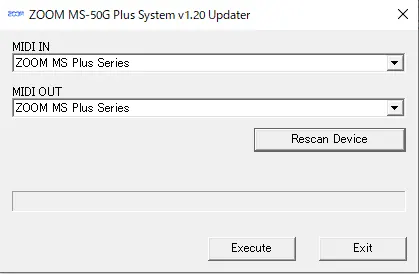
- Launch the firmware update application (e.g., ZOOM MS-50G Plus System v1.20 Updater).
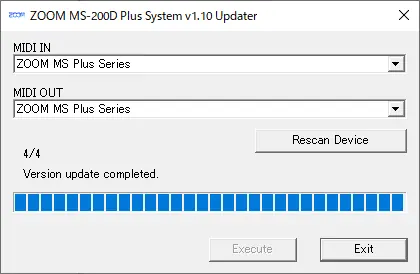
- Select ZOOM MS Plus Series in both the MIDI IN and MIDI OUT fields. If the device is not detected, click Rescan Device.
- Click the Exit button to prepare the device for the update.
- Disconnect the USB cable from the MS-50G+ to turn it off.
- Reconnect the USB cable to the MS-50G+ to initiate the update process. The indicator will blink during the update.
- Once the update is complete, click the Exit button in the application and disconnect the USB cable.
Important safety and usage notes
- Do not turn off the power or disconnect the USB cable while the firmware is being updated.
- If the update fails, restart the procedure from the beginning.
- Ensure the USB cable supports data transfer; if the device is not recognized, try a different cable.
- Standard Windows drivers will install automatically upon connection if not previously configured.
Confirming the update
To verify that the firmware has been updated correctly:
- Press the MENU button on the MS-50G+ to open the Menu Screen.
- Use the dial to select VERSION.
- Press the dial to display the current system, preset, and boot versions.
Practical help
Common problems
Device not recognized by the updater application
Ensure you are using a USB Type-C cable that supports data transfer. Click the Rescan Device button in the updater application.
Firmware update fails
Do not disconnect the cable during the process. If it fails, restart the entire procedure from the beginning.
Before use
- Computer with internet access (Windows or macOS)
- USB Type-C cable capable of data transfer
- Downloaded and extracted firmware ZIP file
- MS-50G+ pedal
Images and diagrams
- The updater application interface requires selecting 'ZOOM MS Plus Series' in both MIDI input and output fields.
- The device display will show 'Ready for firmware update!' when the application is ready to proceed.
Model compatibility
- Compatible with Windows and macOS computers.
- Requires standard Windows driver (installed automatically).

Manual page author
Michael Turner
Technical manual editor
Reviews PDF manuals for structure, safety notes, and practical product details so readers can find the right information quickly.