Electronics / Monitors
Firmware Update Guide for ZOOM MS-70CDR+ Guitar Pedal
A step-by-step guide for updating the firmware on your ZOOM MS-70CDR+ guitar pedal, including preparation, connection, and verification procedures for Windows and macOS.
Table of contents
Manual images
Jump to the sectionQuick guide from the manual
This document provides instructions for updating the firmware of the ZOOM MS-70CDR+ guitar pedal. The process requires a computer with internet access and a USB Type-C cable that supports data transfer. Ensure you do not disconnect the cable or power off the device during the update process.
Preparation
Before starting the update, ensure you have the following:
- A computer running Windows or macOS with internet access.
- A USB Type-C cable capable of data transfer.
- The latest firmware update file downloaded from the official ZOOM website.
Updating the Firmware
Follow these steps to perform the update:
- Download and Extract: Download the ZIP file from the ZOOM website and extract its contents on your computer.
- Connect Device: Use a USB Type-C data cable to connect the MS-70CDR+ to your computer. This will power on the device.
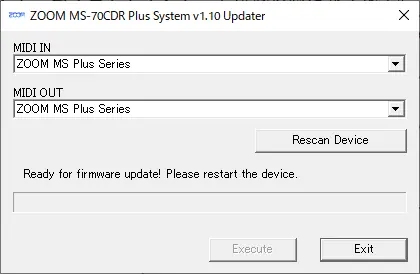
- Launch Updater: Run the firmware update application (e.g., ZOOM MS-70CDR Plus System v1.10 Updater).
- Configure MIDI: In the application, select 'ZOOM MS Plus Series' for both MIDI IN and MIDI OUT fields. If not visible, click 'Rescan Device'.
- Prepare for Update: Click the 'Exit' button in the application to prepare the device.
- Execute Update: Disconnect the USB cable, then reconnect it to the computer. The update will begin automatically.
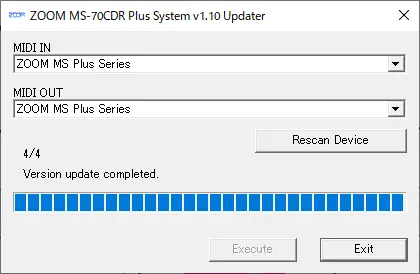
- Completion: Once the progress bar indicates completion, click 'Exit' in the application and disconnect the device.
Verifying the Update
To confirm the firmware has been updated correctly:
- Press the MENU button on the pedal.
- Use the dial to select 'VERSION'.
- Press the ENTER button to display the current system, preset, and boot versions.
Practical help
Common problems
The update application does not show 'ZOOM MS Plus Series' in MIDI fields.
Click the 'Rescan Device' button within the update application.
The device is connected, but the update does not start.
Ensure you are using a USB Type-C cable that supports data transfer, not just charging.
Firmware update fails.
Do not turn off the power or disconnect the cable. Restart the entire procedure from the beginning.
Before use
- Ensure computer has internet access.
- Verify USB Type-C cable supports data transfer.
- Download and extract the correct ZIP file for your OS (Windows or Mac).
- Close other applications that might use MIDI devices.
Images and diagrams
- The updater interface requires selecting 'ZOOM MS Plus Series' in both MIDI IN and MIDI OUT dropdowns.
- The device screen will display 'Ready for firmware update! Please restart.' when it is prepared for the process.
- The progress bar in the application shows the status of the flash memory update.
Model compatibility
- Standard Windows driver is required for firmware updates on Windows PCs.
- The update process is identical for both Windows and macOS after the initial file extraction.

Manual page author
David Miller
Documentation analyst
Organizes user manual content into clear summaries, with attention to model details, product context, and everyday usability.