Music / Guitar Effects
User Manual for ZOOM MS-80IR+ Amp Sim and Multi Effects Pedal
Quick guide for the ZOOM MS-80IR+ Amp Sim and Multi Effects Pedal. Learn how to connect, manage effects, use patch memories, configure the tuner, and use it as an audio interface.
Table of contents
Manual images
Click an image to enlargeQuick Start and Setup
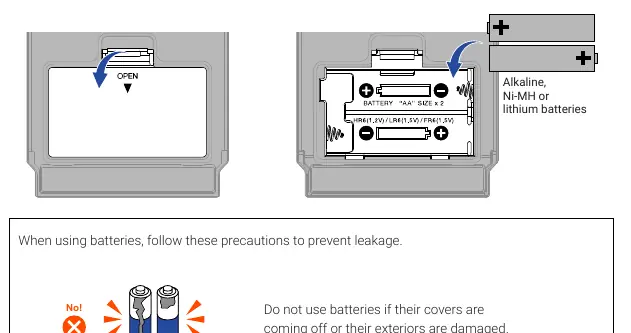
Before using the MS-80IR+, ensure you have read the Usage and Safety Precautions. The device can be powered by two AA batteries or a dedicated AC adapter (ZOOM AD-16). To install batteries, open the battery cover on the bottom of the unit. When using batteries, connecting a cable to the INPUT (L/MONO) jack will automatically turn on the power.
Connecting Equipment
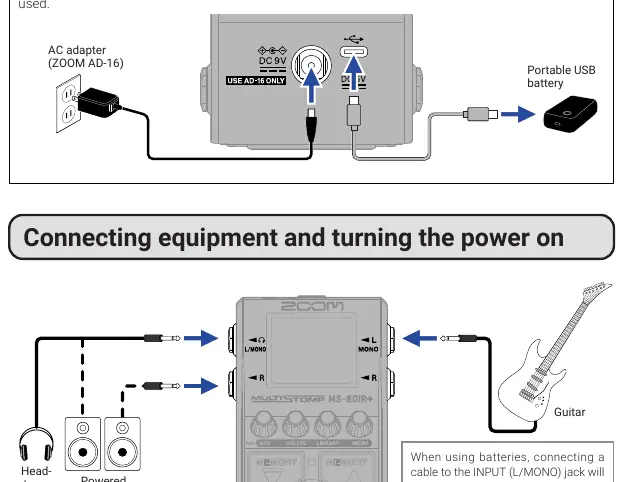
Connect your guitar to the INPUT (L/MONO) jack. You can connect headphones or powered monitors to the OUTPUT jacks. A dedicated AC adapter (ZOOM AD-16) or a commercially-available portable USB battery can be used for power. When using the unit as an audio interface, connect it to a computer, smartphone, or tablet using a USB (Type-C) cable that supports data transfer.
Managing Effects
The MS-80IR+ allows you to combine one amp model, one studio ambience, and one other effect. Use the parameter knobs to adjust settings. Press the knobs to close parameter screens. If parameters span multiple pages, use the SCROLL buttons to navigate. To replace or add effects, use the LIBRARY or ADD buttons, select the desired effect, and confirm. To delete an effect, press the DELETE button, select the effect, and execute.
Patch Memories
Patch memories store effect on/off states and parameter values. You can save and recall settings in units of patch memories. Use the MEMORY buttons to switch between patch memories during performance.
Using the Tuner
Press and hold the footswitch to enter Tuner mode. Play an open string to see the note name and pitch detuning. The display will show ▶◀ when the pitch is in tune. You can change tuner settings such as output sound (BYPASS/MUTE), standard pitch (430 Hz – 450 Hz), and flat tuning using the parameter knobs.
Menu Settings
Access the MENU to configure various system settings, including output volume, patch memory names, effect order, BPM for tempo synchronization, battery type, display contrast, backlight brightness, and USB audio monitoring balance. You can also perform a factory reset or check firmware versions here.
Audio Interface
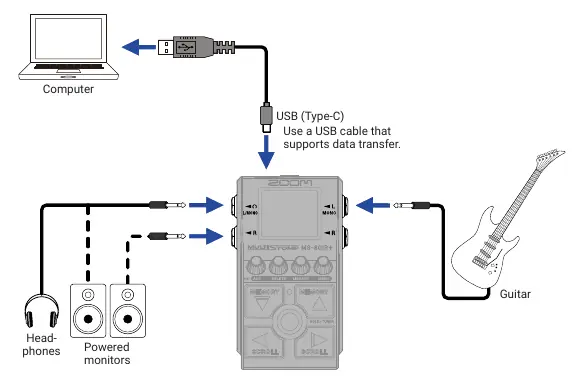
The MS-80IR+ functions as a 2-in/2-out audio interface when connected to a computer, smartphone, or tablet. For Windows computers, a driver must be installed, which can be downloaded from the ZOOM website. You can record with DAW software or perform while mixing sound played from a connected device.
Troubleshooting
If the unit will not power on, check connections or battery installation. If there is no sound, check connections, effect levels, output volume, and ensure the tuner is not set to MUTE. If you cannot select an effect, you may have reached the maximum combination limit; delete an existing effect first. If the sound from the R output jack is strange, check the R OUT POSITION setting.
Practical help
Common problems
Unit will not power on
Check power connections. If using batteries, ensure they are fresh and correctly installed. Connecting a cable to the INPUT (L/MONO) jack is required to turn on the power when using batteries.
No sound or very quiet output
Check all cable connections. Adjust the levels of the effects and the overall output volume. Ensure the tuner output setting is not set to MUTE.
Cannot select an effect
The maximum combination limit has been reached. Delete one effect before adding another.
Strange sound from R output jack
Check the R OUT POSITION setting in the menu.
Before use
- Read the Usage and Safety Precautions.
- Install 2x AA batteries or prepare a ZOOM AD-16 AC adapter.
- Connect guitar to the INPUT (L/MONO) jack.
- Connect output devices (headphones/monitors) to the OUTPUT jacks.
- Ensure you have a USB cable that supports data transfer if using as an audio interface.
Specs in practice
- R OUT POSITION
- Determines which signal (cabinet simulation vs. amp head) is sent to the R output jack, useful for stage setups with both PA and guitar amps.
- Patch Memory
- A storage unit for effect on/off states and parameter values.
Images and diagrams
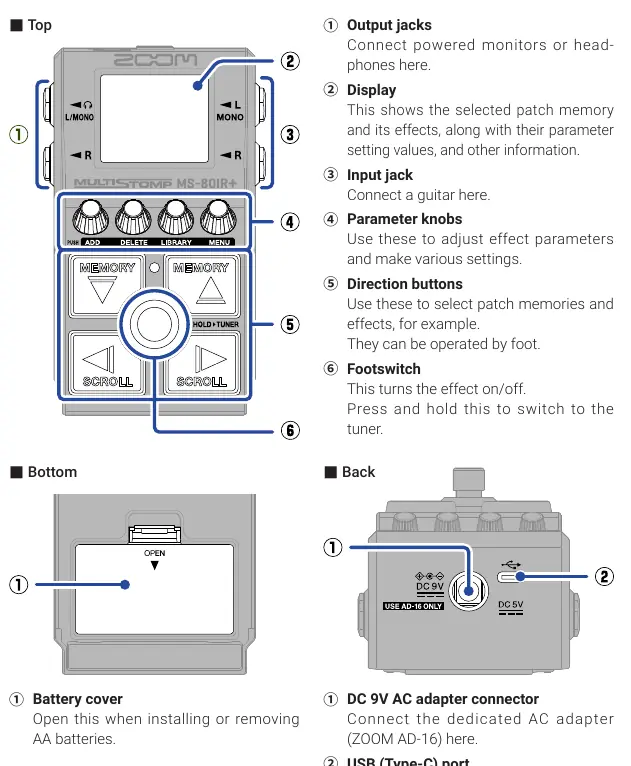
- Top Panel: Contains output jacks, display, input jack, parameter knobs, direction buttons, and footswitch.
- Bottom Panel: Contains the battery cover for AA battery installation.
- Back Panel: Contains the DC 9V power input and USB-C port.
Model compatibility
- Requires a USB cable that supports data transfer for audio interface and app connectivity.
- Windows computers require a driver download from the ZOOM website.
- Supports connection to iPhone/iPad (may require Lightning to USB 3 Camera Adapter).

Manual page author
David Miller
Documentation analyst
Organizes user manual content into clear summaries, with attention to model details, product context, and everyday usability.