Lighting / Fixtures
Timeguard LED200WFB 2x 10W LED Wi-Fi PIR Twin Floodlight User Manual
Quick guide for the Timeguard LED200WFB 2x 10W LED Wi-Fi PIR Twin Floodlight. Includes installation, wiring diagrams, Tuya Smart app setup, and configuration instructions.
Table of contents
Manual images
Click an image to enlargeQuick guide from the manual
The Timeguard LED200WFB is a Wi-Fi enabled twin floodlight with PIR motion detection. This manual covers the installation, wiring, and configuration via the Tuya Smart App. Key requirements include a 2.4GHz Wi-Fi network (5GHz is not supported) and a mounting height of 2.5 meters for optimal performance.
Safety and Installation
Safety Precautions:
- Ensure the mains supply is switched off and circuit fuses are removed or the circuit breaker is turned off before installation or maintenance.
- Consult a qualified electrician for installation in accordance with current IEE wiring and Building Regulations.
- Do not exceed the total load rating of the circuit.
- Clean only with a dry cloth; do not use liquid cleaners.
Installation Steps:
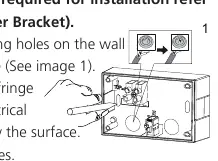
- Mark mounting holes using the back box as a template.
- Drill holes, ensuring no interference with hidden pipes or cables.
- Insert rawl plugs.
- Pass mains supply cables through the back box using appropriate knockouts and grommets to maintain IP55 rating.
- Fix the back box to the wall using two mounting screws.
- For corner installations, use the provided corner bracket and follow the specific template instructions.
Wiring Connections
The luminaire requires a 230V AC 50Hz supply. Connect the wires as follows:
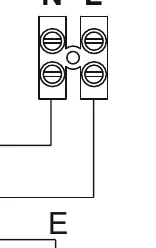
- Live Supply (Brown or Red): Connect to terminal L.
- Neutral Supply (Blue or Black): Connect to terminal N.
- Earth (Green/Yellow): Connect to terminal E.
After termination, re-connect the luminaire to the back box until the lugs click into place.
App Setup and Pairing
Requirements:
- Smartphone/Tablet with iOS 11.0+ or Android 7.0+.
- 2.4GHz Wi-Fi network (disable VPN during setup).
Pairing Process:
- Download and register on the Tuya Smart App.
- In the app, select 'Add Manually' > 'Lighting' > 'PIR Light (Wi-Fi+BLE)'.
- Turn the isolation switch off, on, off, on, off, on. The light will begin 'breathing' (dimming up/down) to indicate pairing mode.
- Follow app prompts to confirm the indicator is blinking and enter Wi-Fi credentials.
Operating Modes and Controls
The Tuya Smart App allows for advanced configuration:
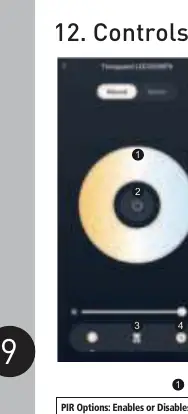
- Manual Override: Switch the light ON/OFF permanently.
- Temperature Wheel: Adjust colour temperature (Warm White to Cool White).
- Schedule: Set timed ON/OFF parameters over a 7-day period.
- PIR Options: Enable/Disable PIR and adjust sensitivity (Motion Distance).
- Lux Adjustment: Set activation triggers based on ambient light levels.
- Hi-Lo Dimming: Configure 2nd stage lighting brightness and duration when no movement is detected.
Technical Specifications
- Mains Supply: 230V AC 50Hz
- IP Rating: IP55
- Lumen Output: 2000lm
- Colour Temperature: 3000K - 6500K
- Operating Temperature: -20°C to +50°C
- Beam Angle: 120° per spotlight
Support
If you experience problems, contact the Timeguard Customer Helpline at [email protected] or call 020 8450 0515. Do not return the unit to the store immediately.
Practical help
Common problems
PIR behaves unusually
This may occur during extreme weather. It is not a fault; the PIR will resume normal operation once weather conditions return to normal.
Pairing fails
Ensure your mobile device is connected to a 2.4GHz Wi-Fi band. 5GHz bands are not supported for pairing. Disable VPN.
False activations
Check for heat sources (boiler exhausts, extractor fans) or reflective surfaces (pools, white walls) in the detection area.
Before use
- Ensure mains supply is switched off.
- Verify 2.4GHz Wi-Fi network availability.
- Download Tuya Smart App.
- Check mounting height (optimum 2.5m).
- Ensure grommets are used to maintain IP55 rating.
Specs in practice
- Beam Angle 120°
- The spread of light emitted by each spotlight.
- Operating Temperature -20°C to +50°C
- The safe ambient temperature range for the device.
Images and diagrams
- Wiring: Connect Live to L, Neutral to N, and Earth to E.
- Mounting: Use the back box as a template to mark holes before drilling.
- Corner Bracket: Use for external or internal corners; remove plastic web if necessary.
Model compatibility
- Requires 2.4GHz Wi-Fi network.
- Compatible with Google Home and Amazon Alexa via Tuya Smart App.
- Not compatible with 5GHz Wi-Fi bands.

Manual page author
David Miller
Documentation analyst
Organizes user manual content into clear summaries, with attention to model details, product context, and everyday usability.