Automotive / Dash Cams
Vantrue S1 Pro Max Dash Cam User Guide
Comprehensive user guide for the Vantrue S1 Pro Max dash cam. Includes installation steps, button functions, app connectivity, and safety tips for optimal performance.
Quick answers from the manual
Quick answer
- The Vantrue S1 Pro Max is a dash cam that requires a clean windshield, an electrostatic sticker, and a formatted SD card for installation. It connects to the Vantrue App via WiFi for settings and playback. p. 2, 8, 14
Key actions
- Format the memory card before first use. p. 14
- Install the electrostatic sticker before the camera. p. 14
First start
- Clean the windshield, apply the electrostatic sticker, mount the camera, insert the SD card, and connect power. p. 14, 15
Problems and fixes
Device malfunction
Do not disassemble; contact Vantrue customer service.
p. 7Maintenance and reset
- Use the reset button to restart the camera. p. 12
Technical specifications
| Parameter | Value | Meaning | Pages |
|---|---|---|---|
| Video Resolution | 2160P+2160P 30FPS | Maximum recording resolution. | p. 13 |
Where to find it in the PDF
- What's in the box p. 8
- Installation p. 14, 15, 16
Table of contents
Manual images
Click an image to enlargeQuick Guide from the Manual
The Vantrue S1 Pro Max is a high-performance dash cam. Before first use, ensure you have a compatible, functioning SD card. The device must be connected to a power supply to operate. For safety, do not operate the device or view videos while driving. Keep the device away from high temperatures and humid environments.
What's in the Box
- Vantrue S1 Pro Max Dash Cam
- GPS Mount
- Car Charger with built-in Type-C cable
- Type-C USB Data Cable
- Warning Stickers and Electrostatic Stickers
- Cable Clip and Crowbar
- Dust-Free Cloth
- 3M Adhesive Stickers
- Quick User Guide and Vantrue Intelligence Functions Manual
Camera Overview
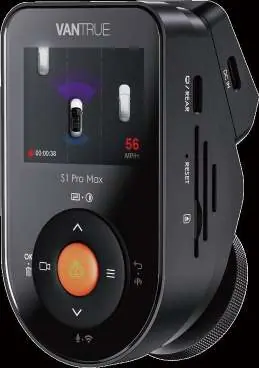
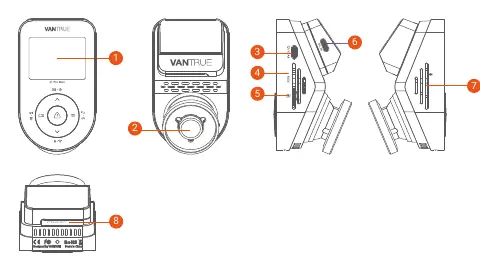
The camera features a 2-inch IPS screen and a front-facing lens. Key ports include a Type-C port for the rear camera or data transfer, a MicroSD card slot, and a reset button. The serial number is located on the bottom of the device.
Installation
Follow these steps for proper installation:

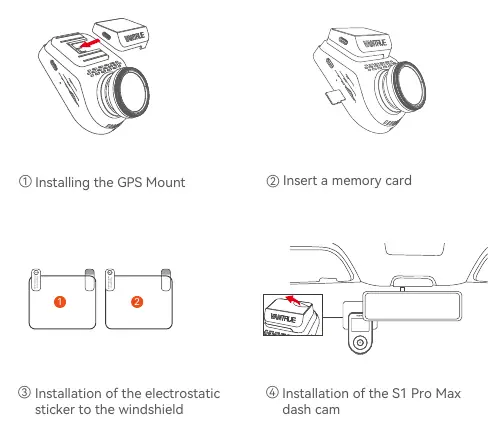
- Clean the mounting position on the windshield thoroughly.
- Apply the electrostatic sticker to the windshield before installing the camera.
- Install the GPS mount and press it firmly against the windshield to expel air and ensure adhesion.
- Attach the dash cam to the mount.
- Connect the car charger and route the cables using the provided cable clips.
- Format the memory card before the first use.
Buttons and Functions
The device uses a 5-button interface:
- Button 1: Start/stop recording, confirm menu actions, play/pause playback.
- Button 2: Switch video window, turn off screen, navigate menu/files, fast forward.
- Button 3: Toggle parking mode, return to previous interface.
- Button 4: Toggle WiFi/Microphone, navigate menu/files, delete file menu.
- Button 5: Power on/off, emergency recording, capture picture.
App and Player
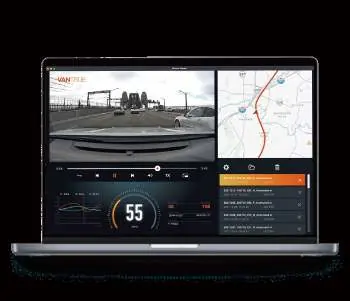
Download the Vantrue App via the QR code in the manual to pair your dash cam. For PC/Mac, download the Vantrue Player from the official website (www.vantrue.net) to view GPS tracking, speed, and video playback.
Warranty and Support
The product comes with a 12-month warranty, extendable to 18 months by registering on the official website. For support, contact [email protected] or use the instant chat on the website.
Official resources from the manual
Practical help
Common problems
App connection issues
Wireless CarPlay or Android Auto may interfere with the app connection.
Device falling off
Ensure the windshield is clean and dry before applying stickers. Press the mount firmly to expel air.
Camera not recording
Ensure the SD card is compatible, functioning, and formatted.
Before use
- Format the memory card.
- Clean the windshield mounting area.
- Apply the electrostatic sticker.
- Connect the device to a power supply.
- Download the Vantrue App.
Specs in practice
- 2.4G/5G WiFi
- Used for connecting the dash cam to the Vantrue App for settings and video transfer.
Images and diagrams
- Use the provided crowbar to tuck cables into the vehicle trim.
- The LED indicator shows standby (steady green) or recording (blinking green) status.
Model compatibility
- Wireless CarPlay or Android Auto may affect app connectivity.
- Requires a compatible MicroSD card.

Manual page author
Emily Carter
User documentation editor
Prepares concise manual descriptions and highlights the most useful setup, operation, and maintenance information for readers.